
The short answer
To remove location and other metadata before sharing a photo, share a stripped copy rather than the original: turn off location at share time on iPhone using Options in the share sheet, or remove saved location first using Adjust Location, then inspect the copy's metadata before you send it. Remember two limits: removal does not hide anything visible in the picture itself, and you cannot control what a receiving platform does next. Keep the original untouched.

What photo metadata can reveal
Modern cameras and phones store more than pixels inside an image file. Alongside the picture they can embed the date and time, the camera or phone model, capture settings, and, when location services are enabled for the camera, GPS coordinates of where the photo was taken. Apple's Personal Safety Guide explains that when Location Services is enabled for Camera, photos embed GPS coordinates that can reveal where they were taken, and that this data stays with images when shared.
Newer provenance work goes further: the C2PA specification defines content credentials, a standard way to attach information about how a file was created and edited. Metadata, in short, is not one field but a family of recorded facts, and different tools read different parts of it.
What removal may not cover
Stripping metadata has honest limits. Plan around all of them:
- The picture itself still shows plenty. Street names, house numbers, school uniforms, car plates, reflections in spectacles or windows, and landmarks all identify location without any metadata.
- The original keeps everything. Removing location from a copy does nothing to the file in your library or to copies already sent, stored in cloud backups, or sitting in shared albums.
- Platform behaviour varies. Some messaging and social platforms strip metadata when they recompress an incoming photo; others preserve parts of it, and sending a photo "as a file" or "as document" usually keeps the file exactly as it is, metadata included. You cannot rely on a platform to strip data for you.
- Filenames talk. A name like "home-front-6pm" or a default name containing a date adds context you may not want.
- Edits leave traces. Some editors keep edit history in the exported file unless you explicitly export a clean copy.
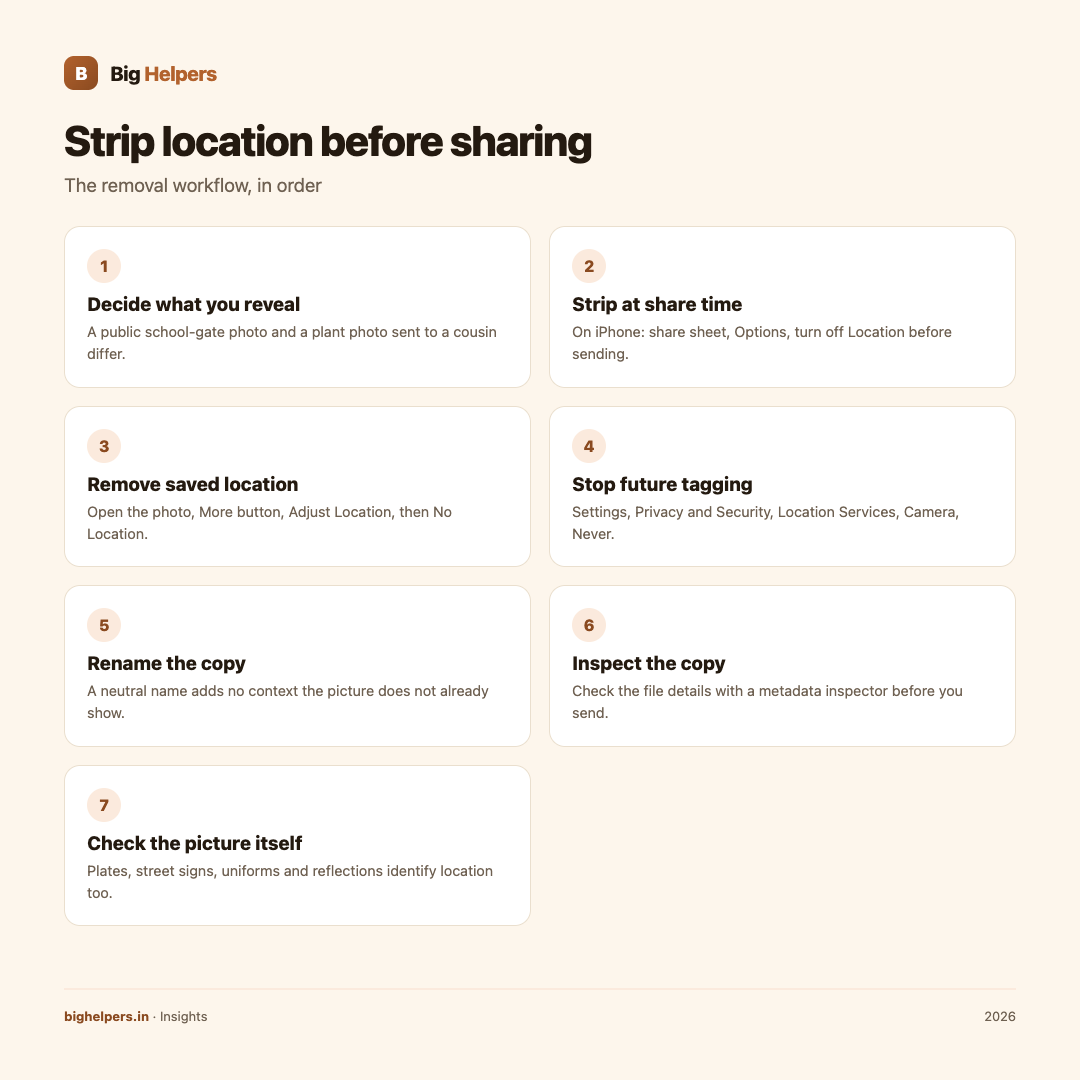
The removal workflow
- Decide what you are willing to reveal. A school gate photo shared publicly is a different risk from a plant photo sent to a cousin.
- Strip at share time when possible. On iPhone, Apple's guide says to use the share sheet, tap Options, then turn off Location before sending. This handles the copy in flight.
- Remove saved location for keeps. Apple's guide: open the photo, tap the More button, choose Adjust Location, then No Location. The location is removed from that photo in your library.
- Stop future tagging if you want it off. Apple's guide: Settings, Privacy and Security, Location Services, Camera, then Never. New photos will not record location.
- Rename the copy to something neutral before sending.
- Inspect the copy before sending. Check the file's details with a metadata inspector so you know, rather than hope, what is inside it.
- Check the picture itself. Scan for plates, street signs, documents, reflections and uniforms. Crop or cover what identifies more than you intend.
A worked example
You want to sell a sofa and share a photo of it in your living room. You use share-time location removal, rename the file "sofa-for-sale" and inspect it: no GPS, no location history. But the photo shows your building nameplate on the wall and a child's school bag with a name tag. You retake with the plate and bag out of frame. The metadata was the smaller problem; the scene was the bigger one.
Inspect, do not assume
The habit that matters most is verification. Export or share the exact file you intend to send, then look inside it.
Pixifold, our free iOS app, is built around private image and PDF work. Its App Store listing states you can "inspect camera, device, date, location, and other embedded metadata", alongside resizing, stitching, scanning and export tools. Processing happens on your device with no account, advertising, analytics, tracking or developer-operated cloud processing, the listing states data is not collected, and each job creates a new result and leaves the file you selected unchanged. Pixifold is available on iOS. Android is in controlled testing.
Because the app also resizes and converts formats, you can export a fresh copy and inspect that exported copy before it leaves your device, which is the file your recipient will actually receive.
Frequently asked questions
Does deleting location from my library delete it from photos already shared?
No. Copies already sent keep whatever metadata they had when they left your device. Removal only affects the copy you act on.
Do messaging apps strip metadata automatically?
Some do when they recompress photos, but behaviour differs between apps, settings and send modes, and file-style sends usually preserve the original file. Strip it yourself rather than trusting the app.
Is a screenshot of a photo free of its metadata?
A screenshot creates a new file that typically does not carry the original photo's metadata, but check the result, and remember the picture content is unchanged. Verify with an inspector instead of assuming.
How do I check what metadata a file has?
Use the info or details view in your photo app for basics, or a metadata inspector that reads the full file. Pixifold's listing includes inspecting "camera, device, date, location, and other embedded metadata".
Should I turn camera location off permanently?
That is a personal choice. Location helps you sort and find travel and family photos. Many people leave it on and strip at share time; people with specific safety concerns often switch it off.
Does removing metadata reduce photo quality?
No. Metadata removal does not touch the image data. Only resizing or recompression changes picture quality.
Last reviewed: 29 August 2026.
What to do next
Before your next sensitive share, run one practice check: export a copy, inspect its metadata, review the scene, then send. Pixifold gives you on-device metadata inspection together with resizing, stitching and PDF export, with no account and no uploads. Pixifold is available on iOS. Android is in controlled testing. See the Big Helpers apps page for current status, browse our insights guides, or contact us with a question.
Sources & references
- Apple Personal Safety Guide, location metadata in photos
- C2PA specification 2.1, content credentials
- Pixifold on the App Store
- Big Helpers apps page
Pricing in this guide is verified as of the article date. Verify with vendors before committing budget — rates change quarterly.