
The short answer
To convert photos of a document into one clean PDF, shoot every page in the same light against the same background, crop tightly and consistently, put the pages in deliberate order, then export and check the PDF before sending it. Look at file size and zoom-level readability, keep at least one safe copy of the set, and treat the document as sensitive when you share it. A phone-based, on-device workflow keeps everything private.
Where this workflow fits
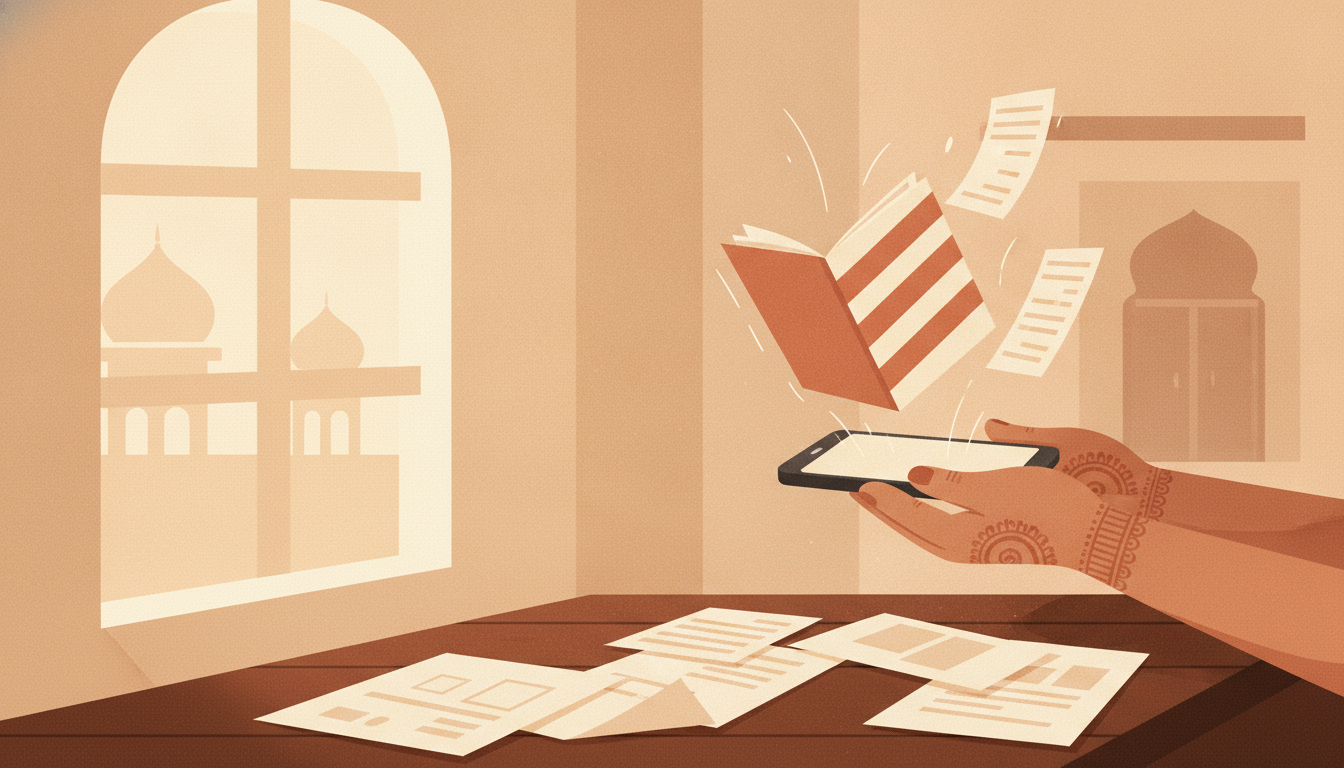
You have paper pages and a phone: a signed form, a bank letter, marksheets, a receipt set, clinic notes. Your phone can photograph these pages and combine them into a single PDF that offices expect. On an iPhone, the Notes app has a built-in Scan Documents mode that captures pages and saves them as a PDF, as Apple's support guide describes.
This article gives you a repeatable process regardless of which tool you use, so your output looks the same every time: upright pages, consistent colour, no fingers in frame and a sensible file size.
The workflow, step by step
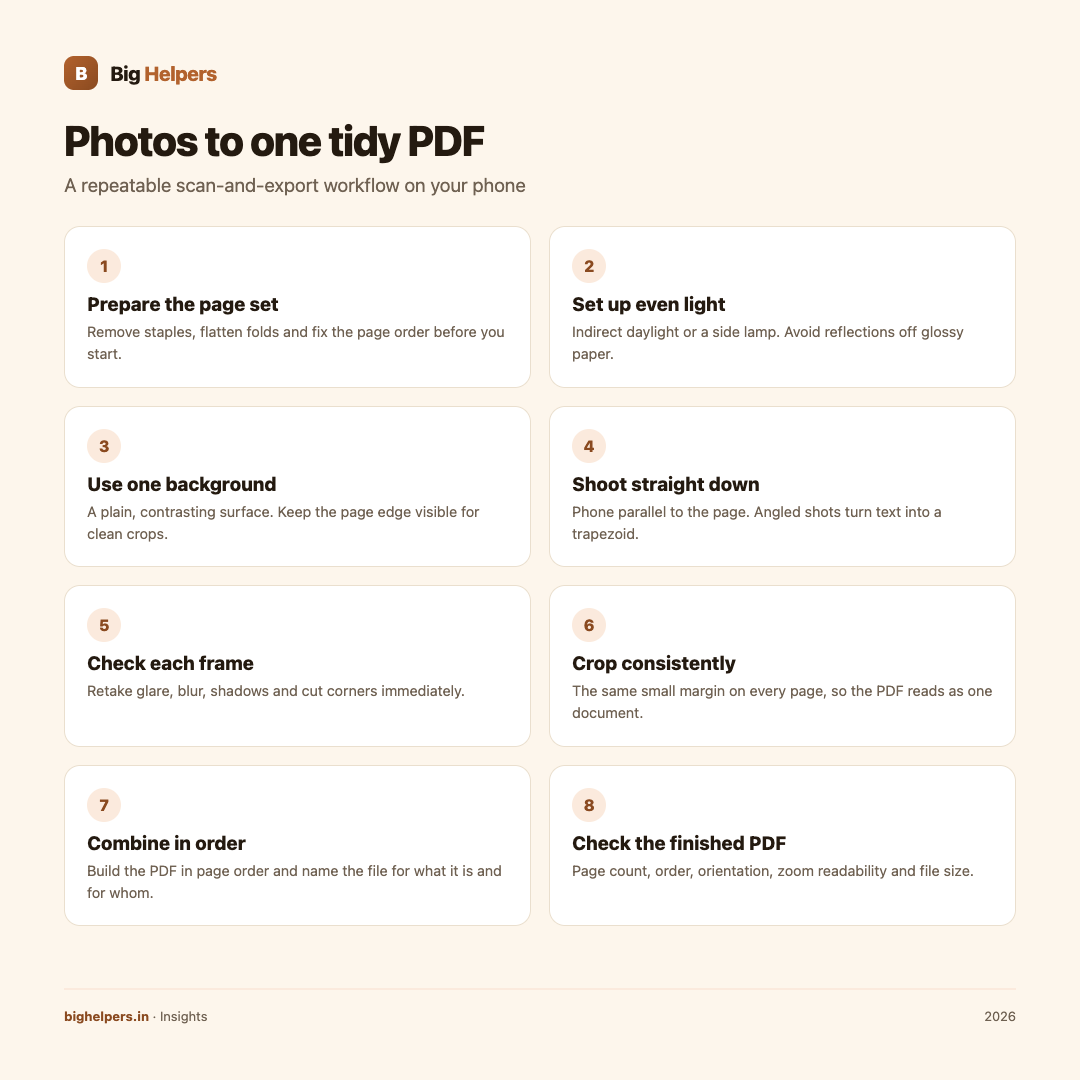
- Prepare the page set. Remove staples, flatten folds and decide the final page order before you start. Write it down if there are more than five pages.
- Set up even light. Indirect daylight or a bright lamp from the side works. Avoid overhead light directly behind you if it reflects off laminated or glossy paper.
- Use one background. Lay pages on a plain, contrasting surface, a dark table for white paper. The edge of the page must be visible so you can crop cleanly.
- Shoot straight down. Hold the phone parallel to the page, not at an angle. Angled shots turn text into a trapezoid that no crop fully fixes.
- Check each frame immediately. Retake any page with glare, blur, a shadow of the phone, or a corner cut off. Fixing one page now is quicker than a reshoot later.
- Crop consistently. Leave the same small margin on every page. Identical framing makes the PDF read like one scanned document instead of a collage.
- Combine in the chosen order. Select the images in page order and build the PDF. Name the file for what it is and for whom, for example "Form-12-pages-for-bank".
- Check the finished PDF. Open it. Confirm the page count, the order, upright orientation, readable small print at full zoom, and a file size the recipient's portal accepts.
A worked example
You must email a seven-page signed agreement. You shoot all pages by a window in daylight, crop each to the page edges, and combine them in order. The PDF comes to 9 MB, above the mail limit, so you re-export with the photos resized first, landing at 2 MB. You open it once more, confirm page three is not upside down, then send. You keep both the PDF and the seven photos until the recipient confirms receipt.
Keep it readable and keep it small
Readability is decided at capture time. If the smallest relevant text on the page, a signature, a date, a stamp, is sharp in the photo, it stays sharp in the PDF. File size is decided by page count and by how much you compress. If a portal enforces a maximum size, resize the photos before building the PDF rather than compressing the finished PDF afterwards, which can blur every page at once.
One honest limitation: a photo PDF is pictures of pages. The text inside is not selectable or searchable unless your specific tool performs text recognition. Do not assume it does; test by trying to select a word.
Sensitive documents and data-loss cautions
Bank letters, IDs and medical papers deserve care at three moments:
- Capture: shoot in a private space; clear your desk of other people's papers; check no reflections reveal extra pages.
- Storage: keep the PDF and photos in one known place, not scattered across chat apps and downloads folders.
- Sharing: send only to the recipient who needs it, and prefer a channel where you can see delivery.
Do not delete your original paper documents or your only photo set just because a PDF exists. Keep at least one verified copy until the process the PDF was made for is complete. If your only backup is the message you sent, that is not a backup; copy the file somewhere you control before cleaning up.
Doing it privately on your phone
Some free converters upload every photo to a server before returning your PDF. For identity or financial documents, that is an avoidable exposure. Prefer an on-device tool.
Pixifold is our free iOS app for this kind of private file work. Its App Store listing describes it as offering private image and PDF tools for resizing, stitching, scanning and export, and states that you can "turn selected images into a PDF" and "render PDF pages as images". Processing happens on your device with no account, advertising, analytics, tracking or developer-operated cloud processing, the listing states data is not collected, and each job creates a new result and leaves the file you selected unchanged. Pixifold is available on iOS. Android is in controlled testing.
Frequently asked questions
How many pages can one PDF hold?
PDF as a format handles very large page counts, but the practical limit is the recipient's portal or mailbox size cap. For long sets, check the final size and split into two files if needed.
Why is my PDF so large?
Photographs at full camera resolution are heavy. Resize the images to the needed display width before building the PDF, and the size drops sharply with little visible loss.
Will the text be selectable?
Not unless your tool performs text recognition. Test by trying to select a word. If selection does not work, treat the PDF as images of pages.
Should I add a password to the PDF?
If the document is sensitive and the recipient can open password-protected files, a password adds a barrier. Only use tools that state clearly how they handle the file and the password.
How do I fix one wrong page without redoing everything?
Replace just that photo, rebuild the PDF from the corrected page set, and re-check the whole file. Rebuilding from kept originals is safer than editing inside a finished PDF.
What is the best light for glossy or laminated pages?
Side light at an angle, not the flash. Tilt the page slightly away from the light source until the glare band moves off the text.
Last reviewed: 29 August 2026.
What to do next
If you regularly turn document photos into PDFs, try Pixifold. It combines selected images into a PDF, renders PDF pages as images, resizes to file-size targets and stitches images, entirely on your device with no account. Pixifold is available on iOS. Android is in controlled testing. See the Big Helpers apps page for current status, browse our insights library, or contact us with a question.
Sources & references
Pricing in this guide is verified as of the article date. Verify with vendors before committing budget — rates change quarterly.