
The short answer
To stitch long screenshots into one clean image, capture each section with deliberate overlap so the stitching tool has matching lines to join on, let the tool align the frames, remove repeated headers and status bars, redact anything private, then inspect the final image at full zoom before you share it. Keep every original frame until you have checked the result. An on-device stitcher keeps the content private while you work.
Start with what your phone can already do
Before stitching manually, check the built-in options. On an iPhone, a screenshot taken in Safari can be saved as a full-page PDF using the Full Page option, as Apple's iPhone screenshot guide describes. On many Android phones, tapping Capture more after a screenshot extends the capture down the page. Use these when they exist.
Manual stitching is for the cases they do not cover: chat threads inside apps, bills split across screens, comment chains, or old screenshots you captured one screen at a time.
The workflow, step by step
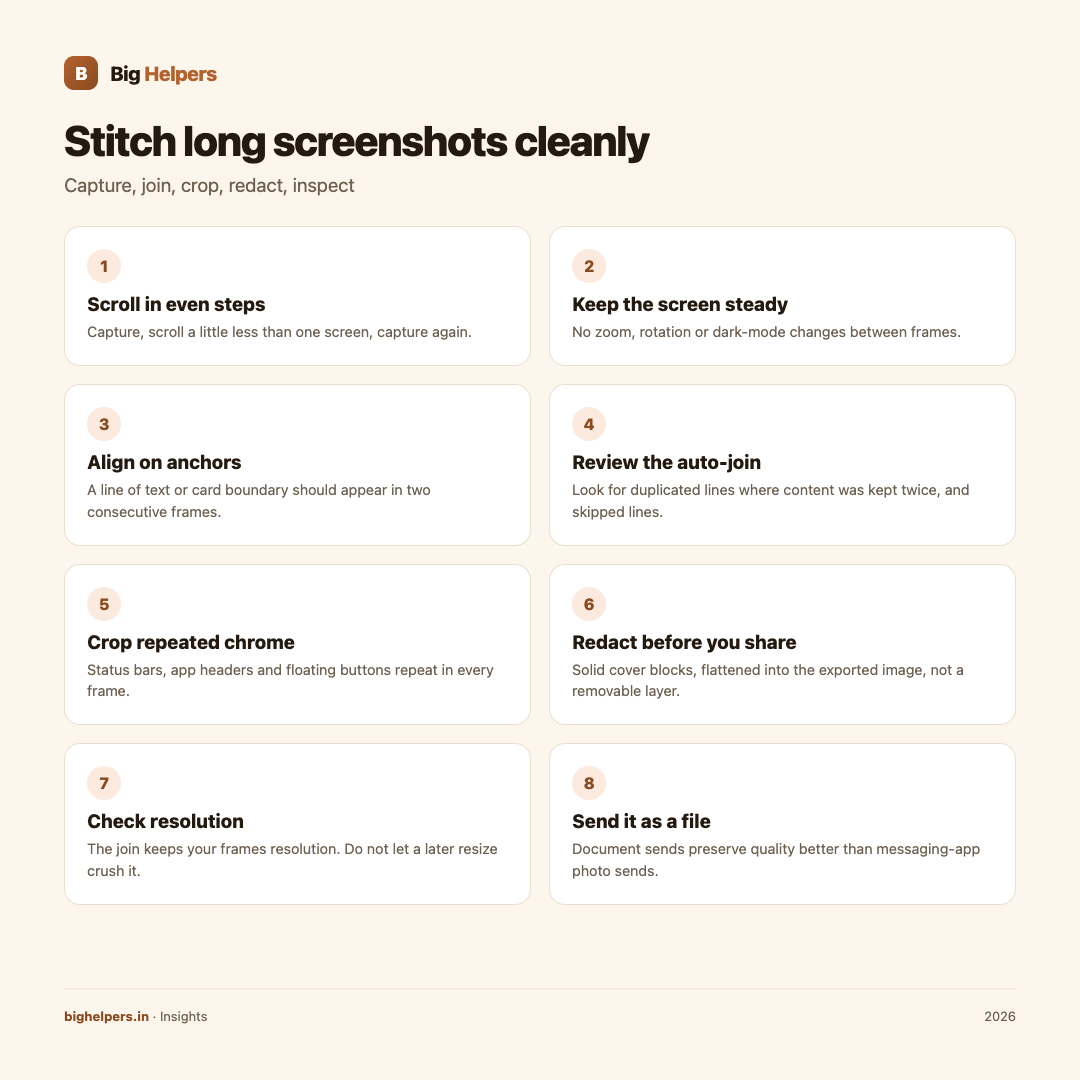
- Scroll in even steps. Capture, scroll a little less than one full screen, capture again. Overlap of roughly a quarter screen gives the stitcher plenty of matching content.
- Keep the screen steady. Do not change zoom, rotation or dark mode between frames. Any change makes frames harder to align and obvious in the join.
- Align on anchors. A line of text, a button or a card boundary should appear in two consecutive frames. The tool matches these anchors; missing anchors produce wavy joins.
- Review the auto-join. Look for duplicated lines where the tool kept a section twice, and for skipped lines where it dropped content between frames.
- Crop repeated chrome. Status bars, app headers and floating buttons repeat in every frame. Crop them from the middle frames so the final image reads as one continuous page.
- Redact before you share. Cover names, phone numbers, account numbers, one-time passwords and email addresses that the recipient does not need. Prefer a solid cover block over a light blur, and check that the covering is flattened into the exported image, not a removable layer.
- Check resolution. The stitched image keeps the resolution of your frames. If each frame is sharp, the long image is sharp too. Do not let a final resize step crush it.
- Send it as a file. Sharing apps often recompress photos. Sending the image as a file or document attachment usually preserves quality better than pasting it as a picture.
A worked example
You need to send a six-screen payment history to a support agent. Capture all six frames in one sitting, scrolling about three-quarters of a screen each time. Stitch them, then inspect: the account balance card appears twice at one join, so you crop the duplicate. A notification shade crept into frame three, so you crop it too. Finally, you cover your full account number and keep only the last four digits visible, because the agent only needs the transaction list.
Final inspection checklist
- Read every join carefully for repeated or missing lines.
- Confirm the top of the first frame and the bottom of the last frame are not cut off.
- Confirm no status icons, battery bars or popup notices repeat down the image.
- Zoom to 100 percent and read the smallest text.
- Confirm every redaction is baked in and unreadable.
- Check the final file opens correctly before you send it.
Do this privately
Long screenshots are personal by nature: chats, bank screens, medical portals, ID previews. Free online stitchers ask you to upload exactly this kind of content to an unknown server. Prefer a tool that stitches on your device.
Pixifold is our free iOS app for private image and PDF work. Its App Store listing describes it as offering private image and PDF tools for resizing, stitching, scanning and export, and states that you can "stitch screenshots or photos into one continuous image". Processing happens on your device with no account, advertising, analytics, tracking or developer-operated cloud processing, the listing states data is not collected, and each job creates a new result and leaves the file you selected unchanged. Pixifold is available on iOS. Android is in controlled testing.
One caution: keep your original frames until you have verified the stitched image, and only delete them once you are certain nothing was skipped at a join. If you plan to delete the originals permanently, make sure the stitched copy is checked first, because a skipped line at a join is easy to miss and impossible to recover once frames are gone.
Frequently asked questions
How much overlap should I leave between frames?
About a quarter of the screen is a good working amount. Too little overlap risks missing lines at joins; too much means the tool has more chances to duplicate content.
Why does my stitched image look wavy or broken in the middle?
The frames did not share enough matching content, or something changed between captures such as zoom or an expanding section. Recapture the problem area with more overlap.
Should I redact before or after stitching?
Redact after stitching but before export, on a single copy. Redacting frame by frame is slower and inconsistent, and a solid cover applied once across the final image is easier to verify.
Does stitching reduce the quality of my screenshots?
The stitch itself joins pixels; it does not compress them. Quality loss usually comes from a later resize or from a messaging app recompressing the image in transit.
Can I stitch photos and screenshots together?
Yes, when the tool supports mixed inputs, but the result can look uneven because resolutions differ. Match dimensions before joining for a cleaner result.
Is one long image better than several separate ones?
One image is easier to follow and harder to misorder. Several smaller files are easier to read on a small screen. Match the format to what the recipient needs to do with it.
Last reviewed: 29 August 2026.
What to do next
If you often need tidy long screenshots for support tickets, records or documentation, try Pixifold. It stitches screenshots and photos into one continuous image, resizes to file-size targets and exports images as PDF, entirely on your device. Pixifold is available on iOS. Android is in controlled testing. See the Big Helpers apps page for current status, browse our practical insights, or contact us with a question.
Sources & references
- Apple, Take a screenshot on iPhone (Full Page saves as PDF)
- Pixifold on the App Store
- Big Helpers apps page
Pricing in this guide is verified as of the article date. Verify with vendors before committing budget — rates change quarterly.